Approve fixes
Citedon turns the gaps from your scan into specific fixes. You review exactly what will be added, approve it, and the connected plugin applies it additively to your live site. Every change is reversible.
By default, Citedon applies nothing without your approval. Each recommendation is one gap, with the structured data that closes it and the readiness lift it is predicted to add. You stay in control of every change to your site.
Approve a fix
1. Open Recommendations
In your dashboard, open the connected project and scroll to Recommendations. Each card is one gap, with a predicted readiness lift.
2. Review what will be added
Open What we will add on a card to see the exact structured data Citedon will merge into the page. You see it before anything changes.
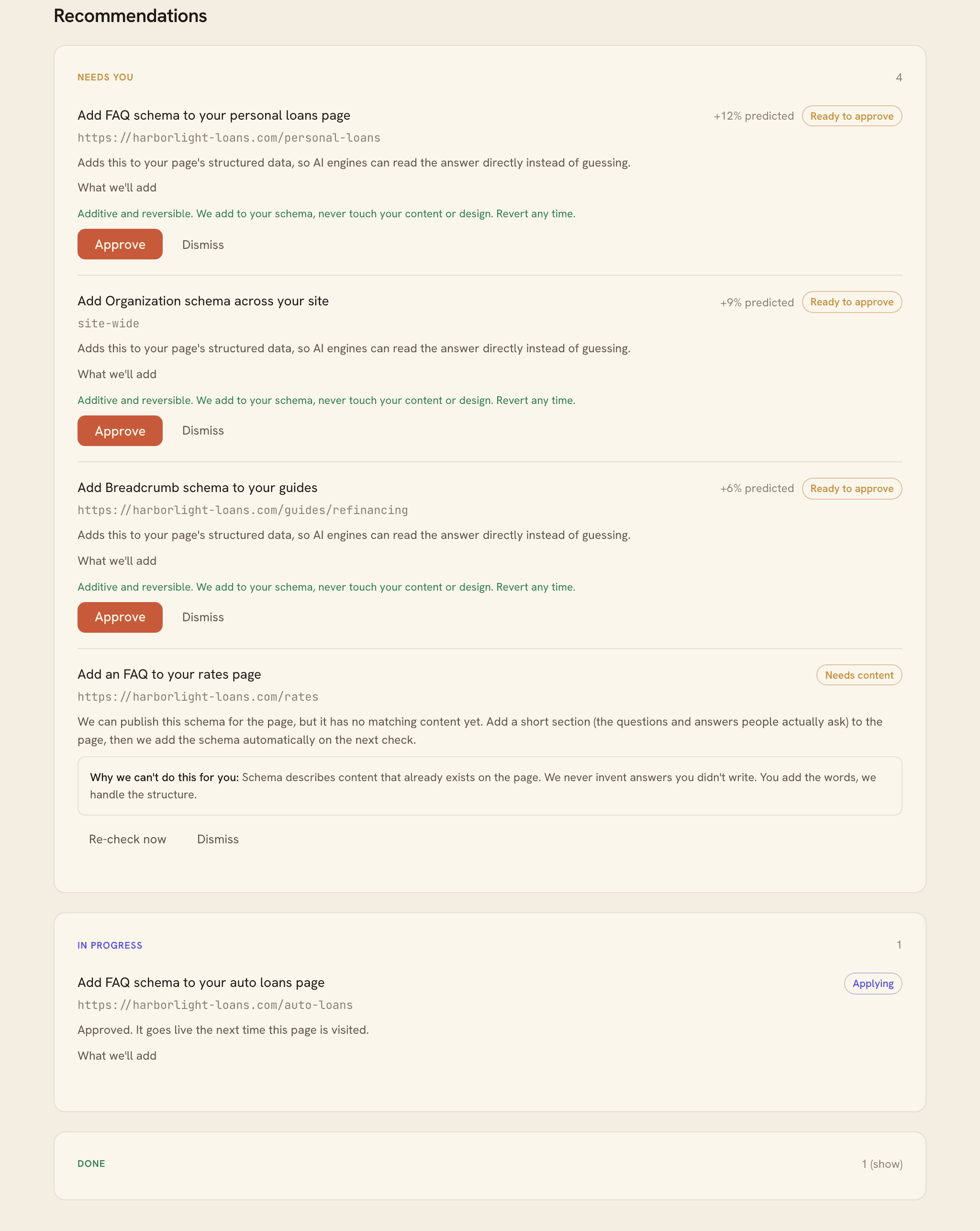
Approve recommendations in your Citedon dashboard; the connector only applies what you approve. 3. Approve or dismiss
Click Approve to apply the fix, or Dismiss to skip it. Approve a fix and Citedon applies it to your WordPress site through the connected plugin. This is not a blind one-step action; you approve each change.
4. Watch it apply and verify
The card moves to applying, then to verified after a re-scan confirms the fix landed on the live page. A verified card can show the observed change in your engine results. You can Revert any applied fix at any time.
When a fix needs your input
- Needs content. Some fixes need real content to be honest, for example an FAQ with actual questions and answers. Citedon will not invent it or ship an empty shell. Add the content, then click Re-check now.
- Could not apply. If the host blocked a change, the card explains why and offers Try again. Often this means your site already satisfies the fix.
- Rolled back. If an applied fix fails a post-apply health check, Citedon reverts it automatically and tells you. Your page is never left in a broken state.
Fixes applied? Next, the watch keeps them in place as your site and the engines change.